
Plan · Revenue forecast
Five years of revenue, built lease by lease.
A 60-month forecast built from every lease and unit you hold, checked against market rents and approved before it becomes a budget. Every number shows how it was built.
 Revenue forecast
Without PropertyHive
Sound familiar?
The budget is one big spreadsheet
Rent roll, expiries and assumptions pasted into one workbook that only its author can explain.
Expiries arrive as surprises
Half a tower's leases end in the same quarter, and nobody sees the gap until the units are empty.
Nobody can say why the number moved
This month's forecast differs from last month's by millions, and the explanation is a guess.
How it works
Revenue forecast, step by step.
Read the portfolio in one view
The overview joins actual revenue to the 60-month forecast, split by revenue stream and grouped by building, legal entity or community.
Revenue forecast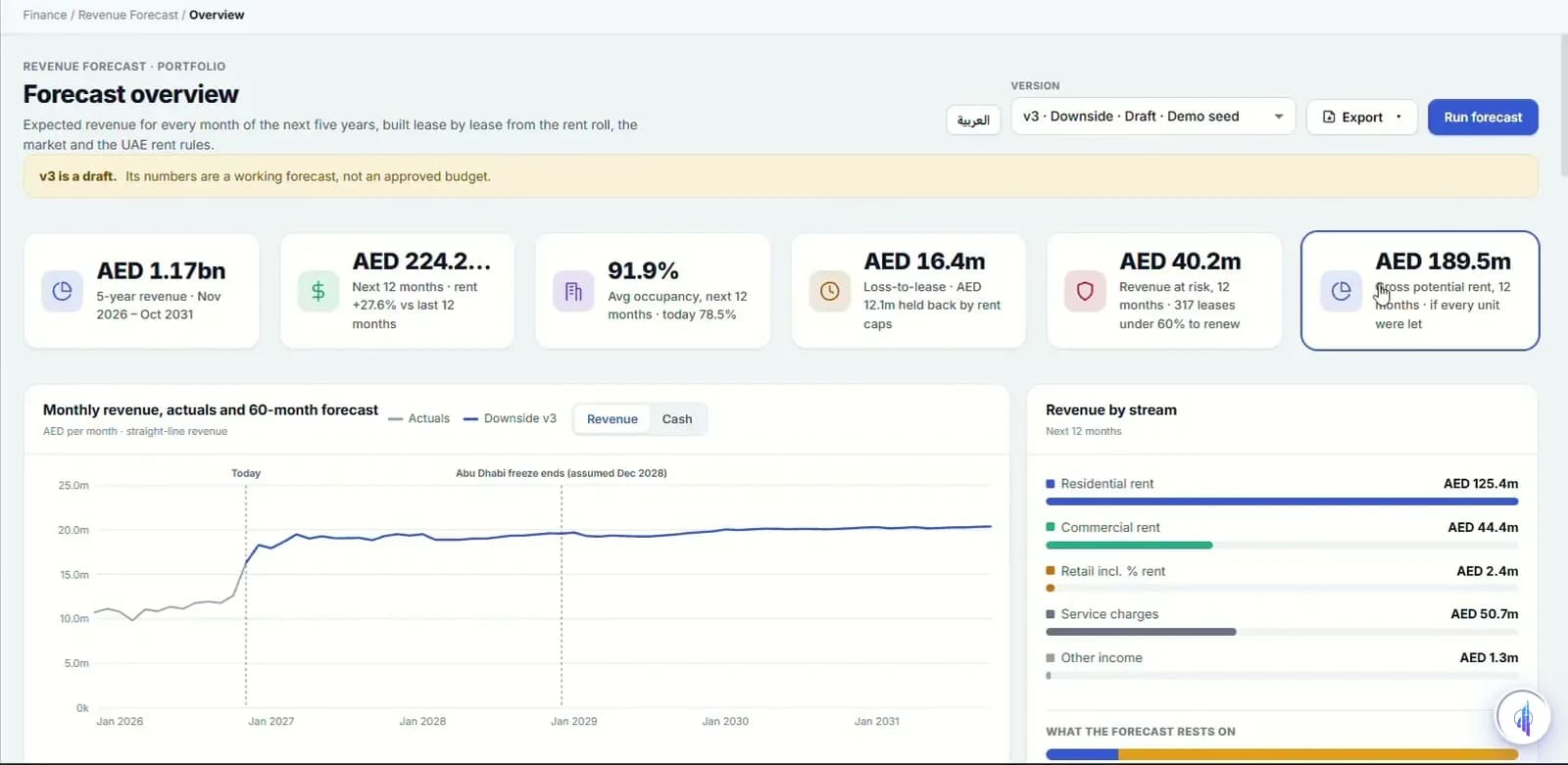
Open a building and trace every unit
A revenue bridge shows how contracted rent becomes the forecast. Each unit has a panel explaining how its figure is built, and a manager can override it with a reason kept on record.
Revenue forecast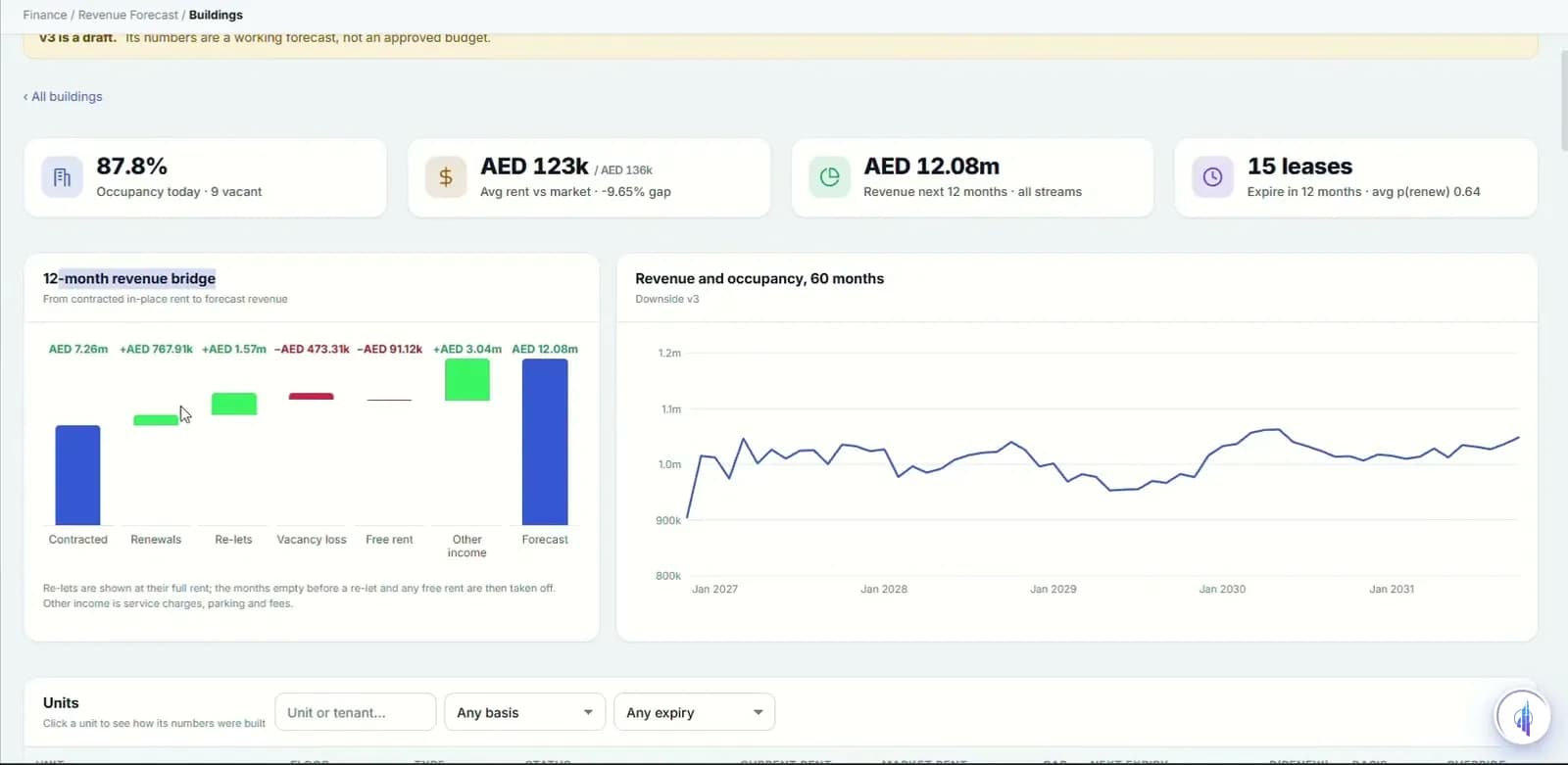
Act on expiries before they land
The expiry calendar shades each month by revenue at risk. Pick a month to see its leases with the chance of renewal and the legal cap, then turn them into renewal tasks.
Revenue forecast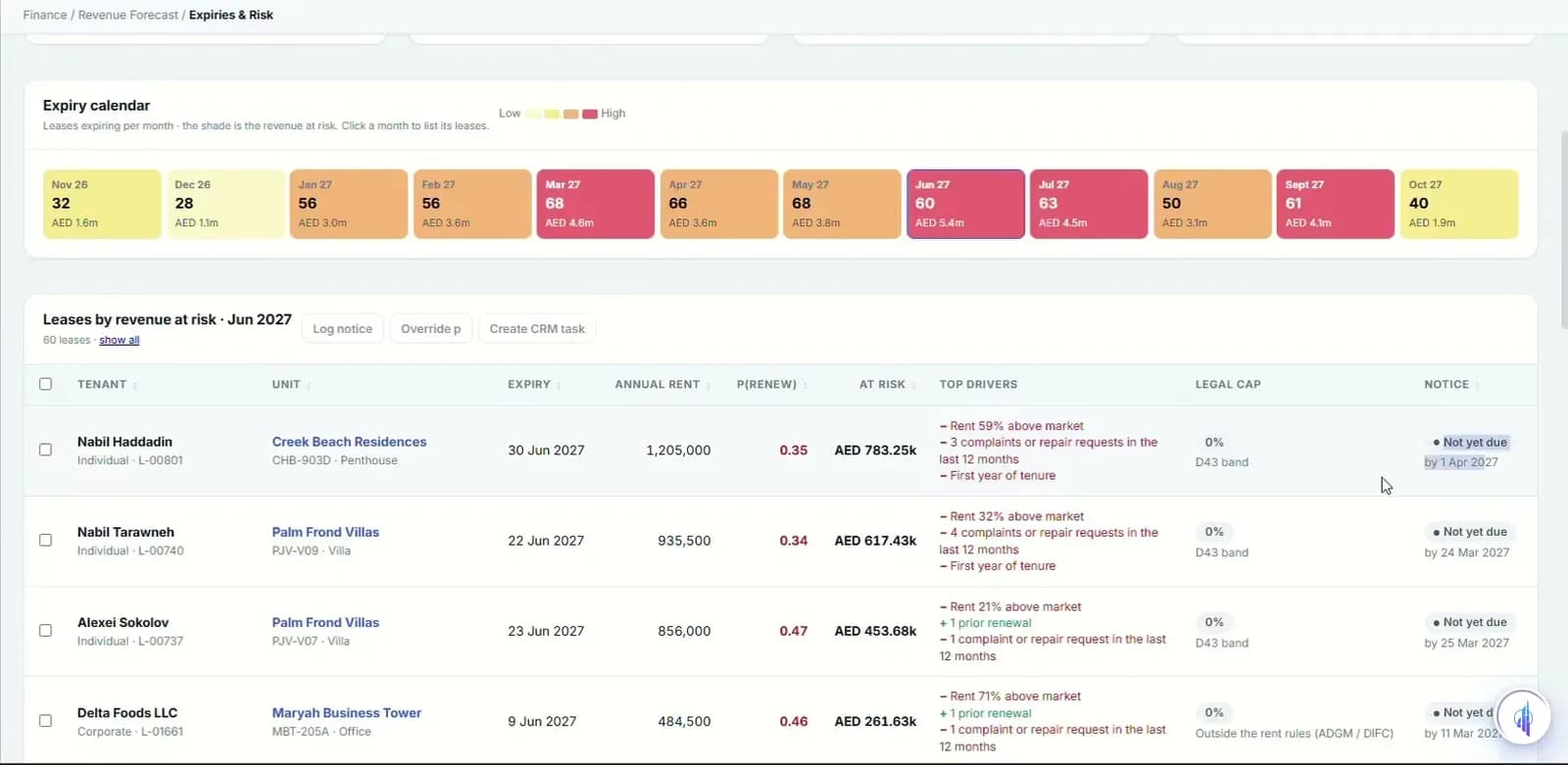
Test scenarios against the base case
Start from Base, Upside or Downside and move the levers: renewal probability, downtime, uplift policy, the Abu Dhabi freeze end, or a supply shock in one community. The five-year effect shows at once.
Revenue forecast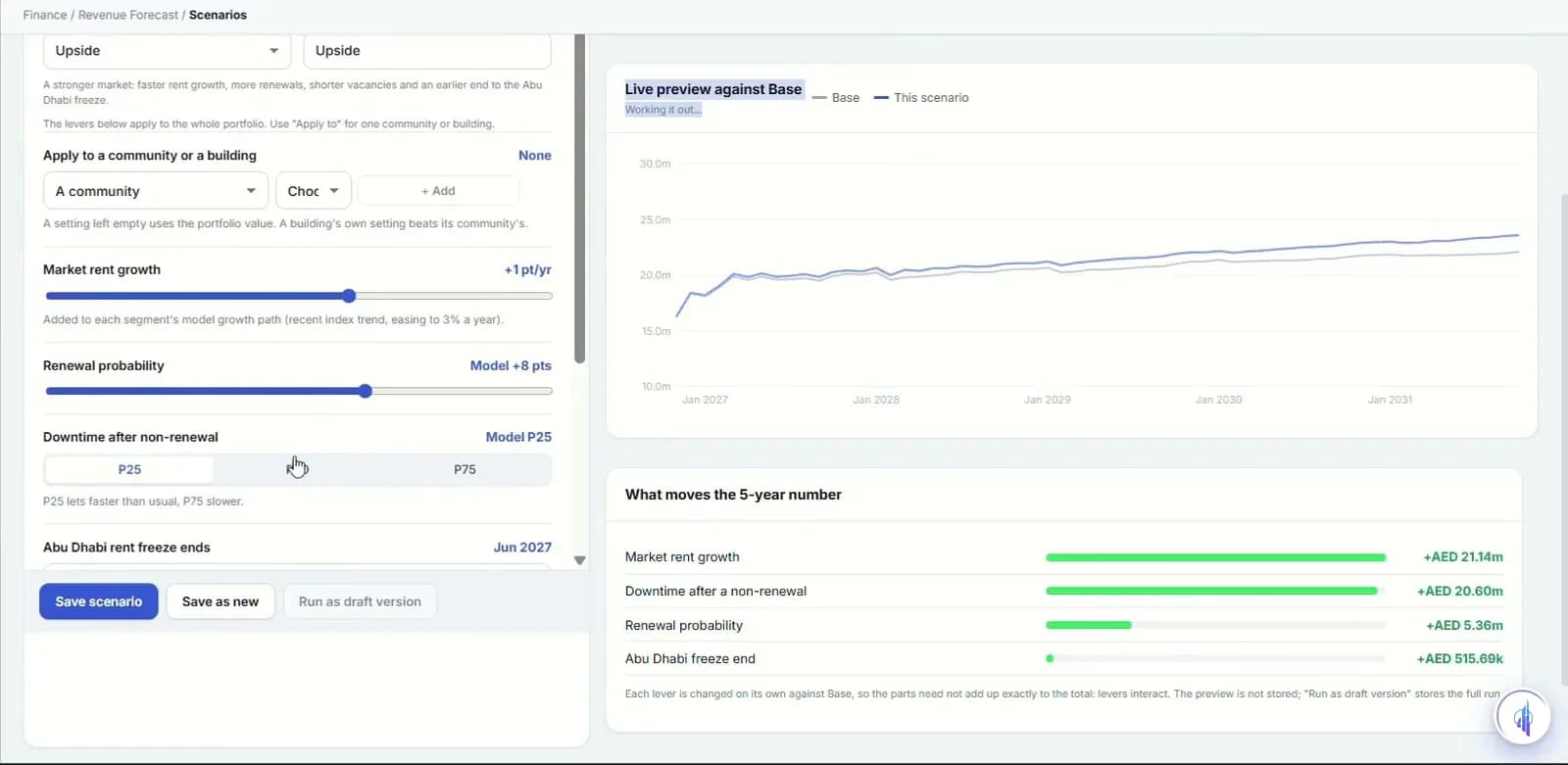
Approve, lock and compare
Each run is a numbered version that moves from Draft to Submitted, Approved and Locked. Compare two versions driver by driver, and check a locked forecast against actuals.
Revenue forecast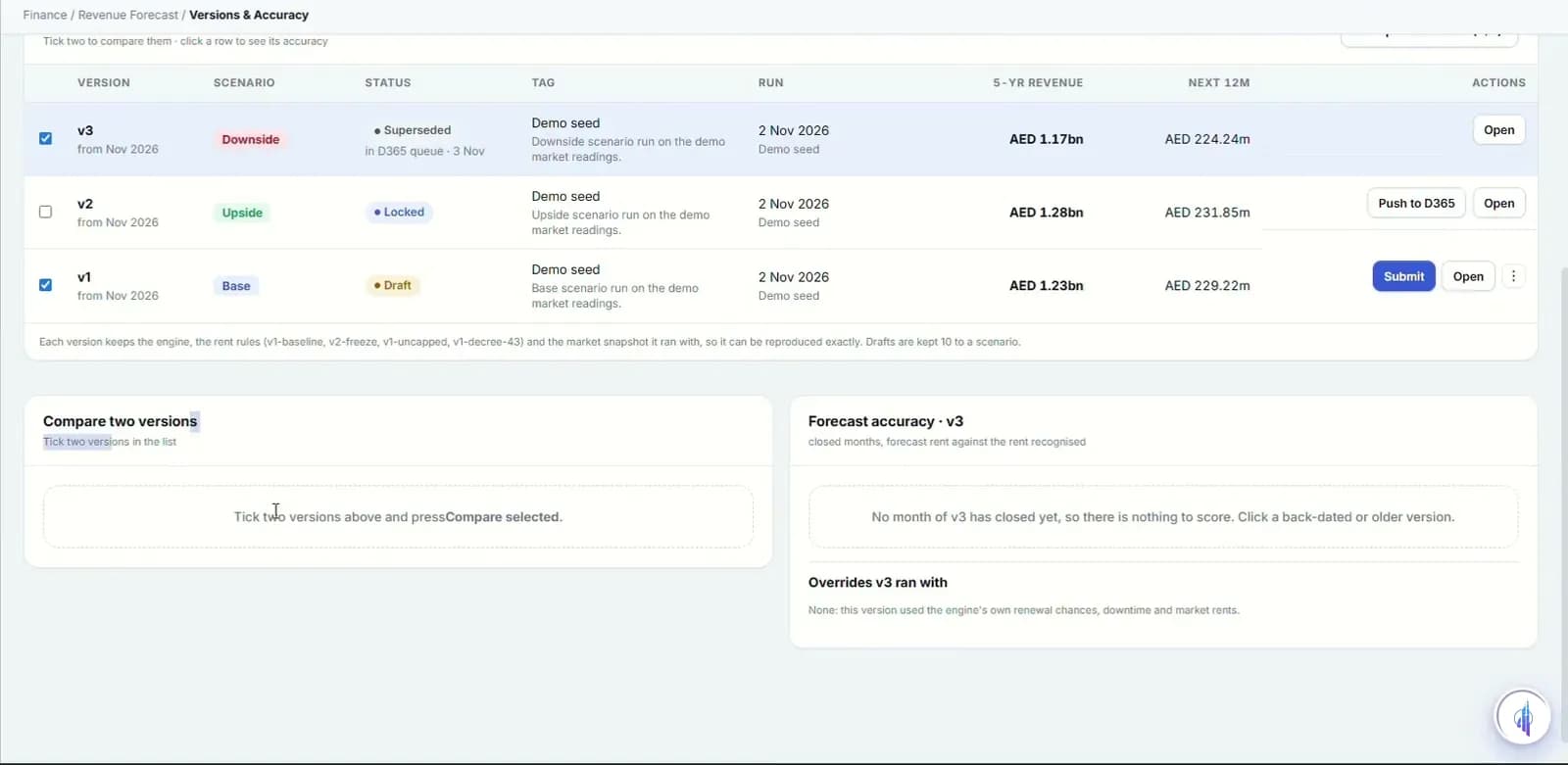
- 60
- month forecast horizon
- 3
- starting scenarios
- 5
- forecast roles, from Viewer to Model Owner
Capabilities
Everything it takes, in one place.
60-month horizon
Five years, month by month, built from each lease and each unit.
Explainable by design
Rule-based and transparent. Every unit figure shows the inputs behind it.
Revenue bridge
How contracted rent becomes the forecast, building by building.
Expiry heat calendar
Months shaded by revenue at risk, with renewal chance and legal cap per lease.
Three starting scenarios
Base, Upside and Downside, with levers that can apply to a single community.
Weighted market data
DLD and ADREC indices and broker rents, blended by how far each source is trusted.
Versions with approval
Draft, Submitted, Approved and Locked, with a waterfall comparison and accuracy against actuals.
Overrides with a reason
Managers can override a unit or a market rent, and the reason stays on record.
Budget hand-off
Locked versions queue for the Dynamics 365 budget, integration-ready. PDF and Excel exports throughout.
Watch it work
Revenue forecast walkthrough
Five years, lease by lease, with scenarios, market data and approved versions.
Narrated in English with captions. All data shown is demo data.
Works hand in hand with
FAQ
Questions we hear a lot.
How is the forecast calculated?
It is rule-based. Each unit's figure is built from its lease and the scenario's assumptions for renewal, downtime and uplift, checked against market rents from weighted sources. Any number can be opened to see how it was built.
Who can change or approve a forecast?
There are five roles: Viewer, Editor, Approver, Data Steward and Model Owner. A version is submitted, approved by an Approver and then locked, so the budget is never an unreviewed draft.
Does it feed our budget in Dynamics 365?
Locked versions go to a hand-off queue for the Dynamics 365 budget. The connection is integration-ready and switched on during onboarding. Every version also exports to PDF and Excel.
See it on your portfolio.
Bring your unit list and a month of cheques. We'll show you the workflow, not the slides.